 Indicatrix
The studio & faceting CAD
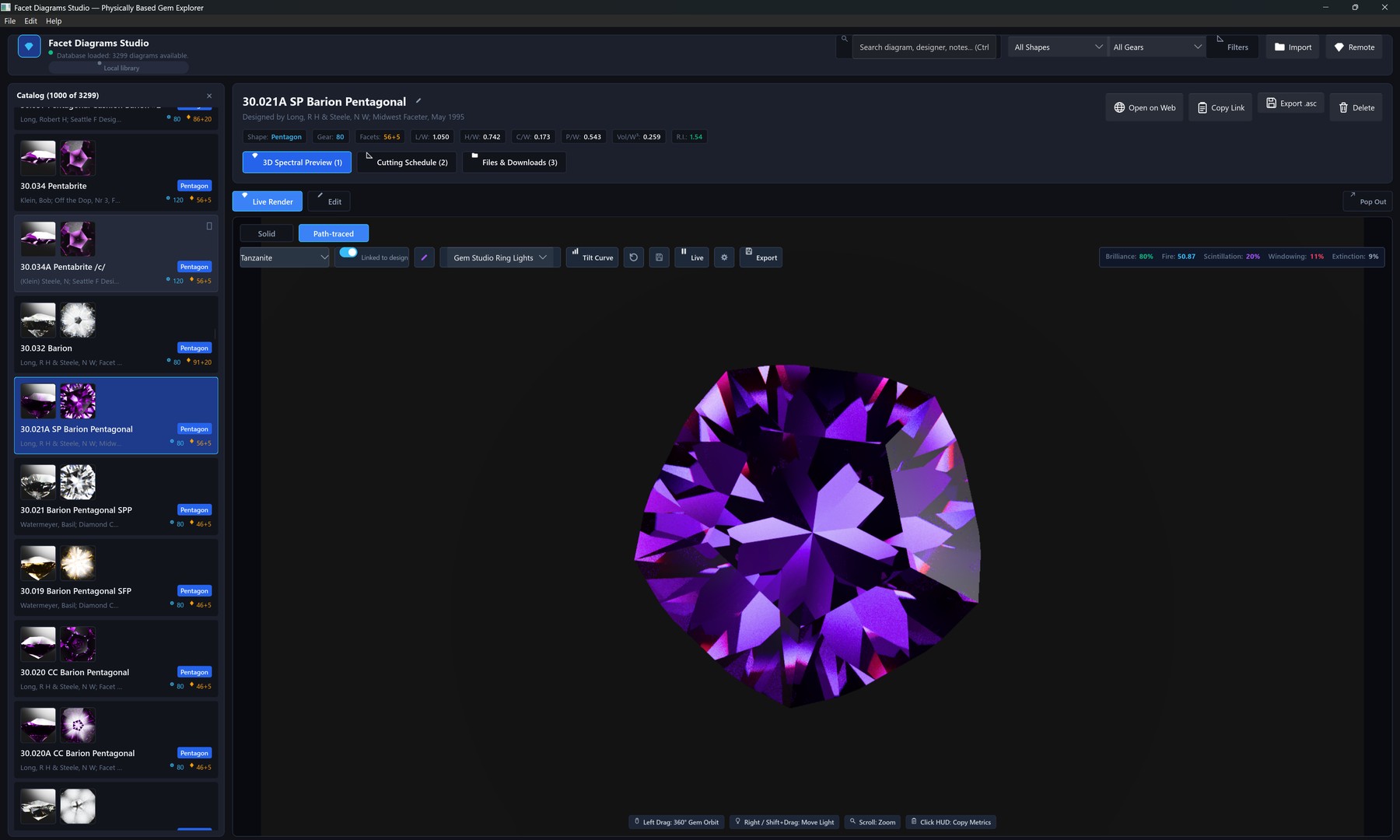
indicatrix-cut — a Slint desktop application: design library, live spectral viewport, and a constraint-based faceting editor.
The faceting CAD is in beta. Solving now runs on a background solve service with real mid-solve cancellation and a progress-tracked activity list rather than freezing the editor, new designs are guided by a template gallery and an in-app worked example, and results carry stale badges the moment they no longer match the current design — but the editor's interaction model is still evolving, and results should be checked against a conventional CAD before cutting. The design library and 3D viewport (sections 1–4 below) are more stable than the editor itself and the rough planner (sections 5–8).
1Overview
apps/indicatrix-cut is built with
Slint. It combines a design-library
browser, a live 3D spectral viewport, and the faceting CAD engine in
one window.
2The design library
Designs are stored in a local SQLite database
(indicatrix-vault) by default — no account, no telemetry —
though the library view can also switch to browsing the remote
coordinator's catalogue over the network instead. Filterable by shape, index-gear
tooth count, refractive-index range, length/width ratio, and facet
count. The shape filter is populated partly by automatic
classification: girdle facet count and length/width ratio identify a
confident round, triangle, square, hexagon, or octagon outline;
elongated shapes such as oval, cushion, and emerald are not
auto-detected and keep whatever label the source data or a manual edit
gives them. Import brings in single .asc files or entire
folders; the original file is preserved alongside the parsed schedule.
The Library menu holds the whole-library actions. Regenerate All Preview Images..., Regenerate All Tilt Curves... and Regenerate Both... rebuild the cached preview thumbnails and tilt curves for every design in the library; each one opens a confirmation step first and is greyed out only while such a batch is already running. (The filter panel has a matching pair of buttons that regenerate just the filtered set.) Plan Rough... opens the Rough planner (section 7), which draws its candidate designs from this library.
3The 3D viewport
The viewport switches between a fast solid preview and the full spectral path tracer. Orbit, pan, and zoom with the mouse; the progressive path tracer accumulates samples while the camera is still and resets on any camera or material change. Seven lighting presets — an analytic studio rig in four moods, an ISO hemisphere, a jewellery light tent and a daylight sky (see the physics page) — plus an optional grey or white backdrop card behind the stone, and custom HDR equirectangular environment maps, are all supported, along with live readouts of brilliance, fire, scintillation, windowing, and extinction as the stone is orbited. If the optional GPU compute path loses its device mid-session, the viewport re-acquires it once and retries the same frame; if that also fails it falls back to the CPU tracer for the rest of the session with a visible status message, rather than freezing.
4Tilt performance sweeps
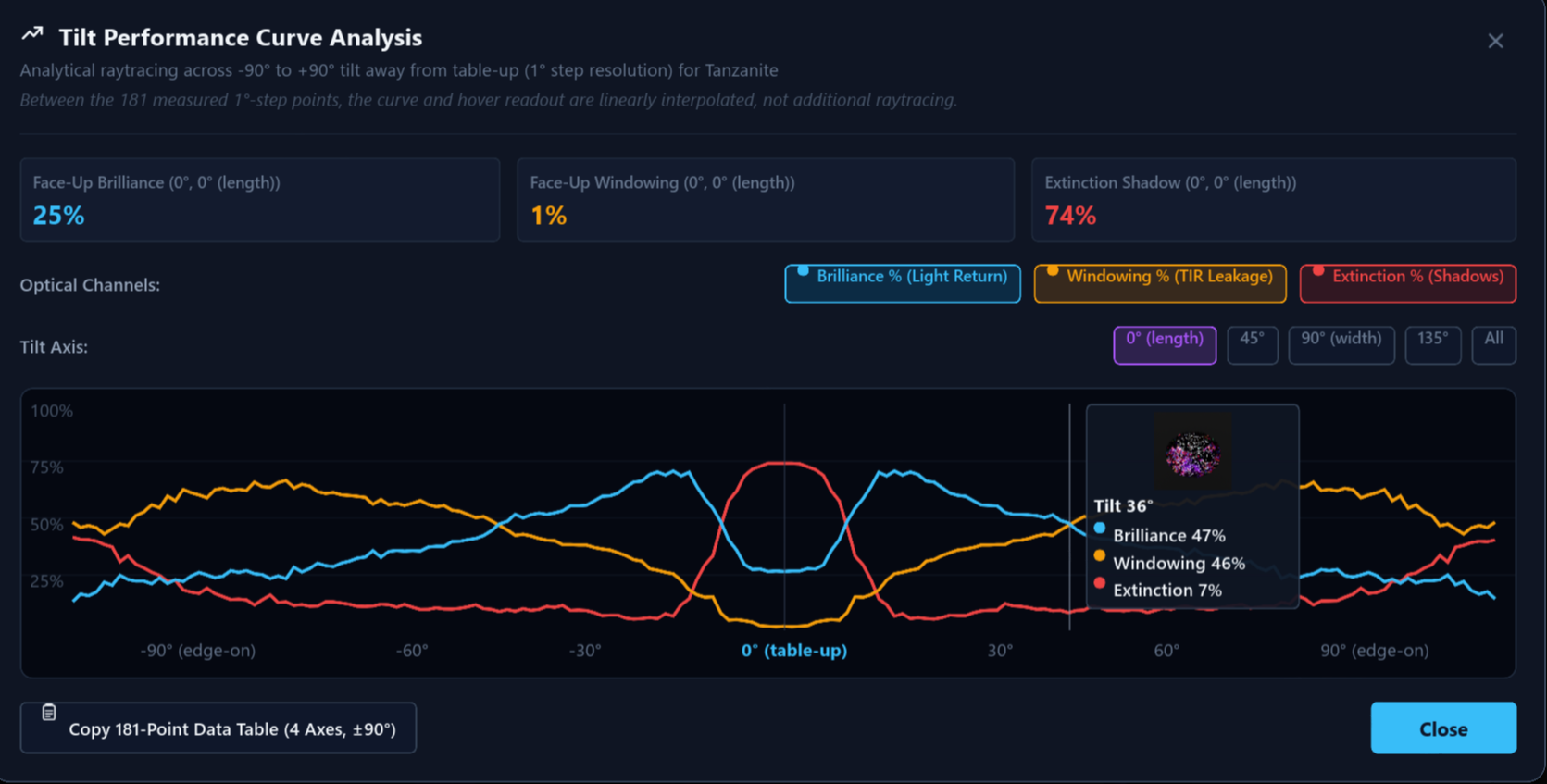
A cut that looks brilliant face-up can black out or window heavily at a
few degrees of tilt. Indicatrix sweeps a 181-point tilt profile
(±90°) at each of 4 fixed camera azimuths — 0°, 45°, 90°,
135° (PROFILE_AZIMUTHS_DEG, crates/indicatrix/src/color/metrics.rs)
— and plots brilliance, windowing, and extinction together so a design's
behaviour in the hand, not just face-up, is visible.
A tilt sweep can also be exported as a video: pick one of the four
camera azimuths as the sweep axis, a step from 0.01° up to 5° between
frames (MIN_STEP_DEG/MAX_STEP_DEG,
apps/indicatrix-cut/src/gui/tilt/video_export/params.rs),
and a resolution from 128 × 128 up to 8K (7680 × 4320), or a custom
size clamped to the same 128–8192 px range per axis. An optional
performance overlay burns the brilliance/windowing/extinction readout
into each frame in a layout that adapts to the chosen width. Every
frame renders through the same local CPU/GPU/hybrid setting and
configured remote coordinator as a still-image export — not a separate,
CPU-only tracer — including the same Transfer choice while a
remote is configured: Full data merges the remote's samples
with the local lanes, Final picture only has the coordinator
send one finished PNG per frame while the local lanes stay idle. The
live viewport pauses for the whole video's
duration exactly as it does during a still-image export, and never
shares the app's single GPU adapter with it while it runs. The
numbered PNG sequence is then muxed into an H.264 MP4 with
ffmpeg when it is found on PATH, an animated
GIF via the image crate when it is not, or, failing both,
left as a PNG sequence with a README.txt explaining how
to mux it by hand.
5Constraint solver and tier editor beta
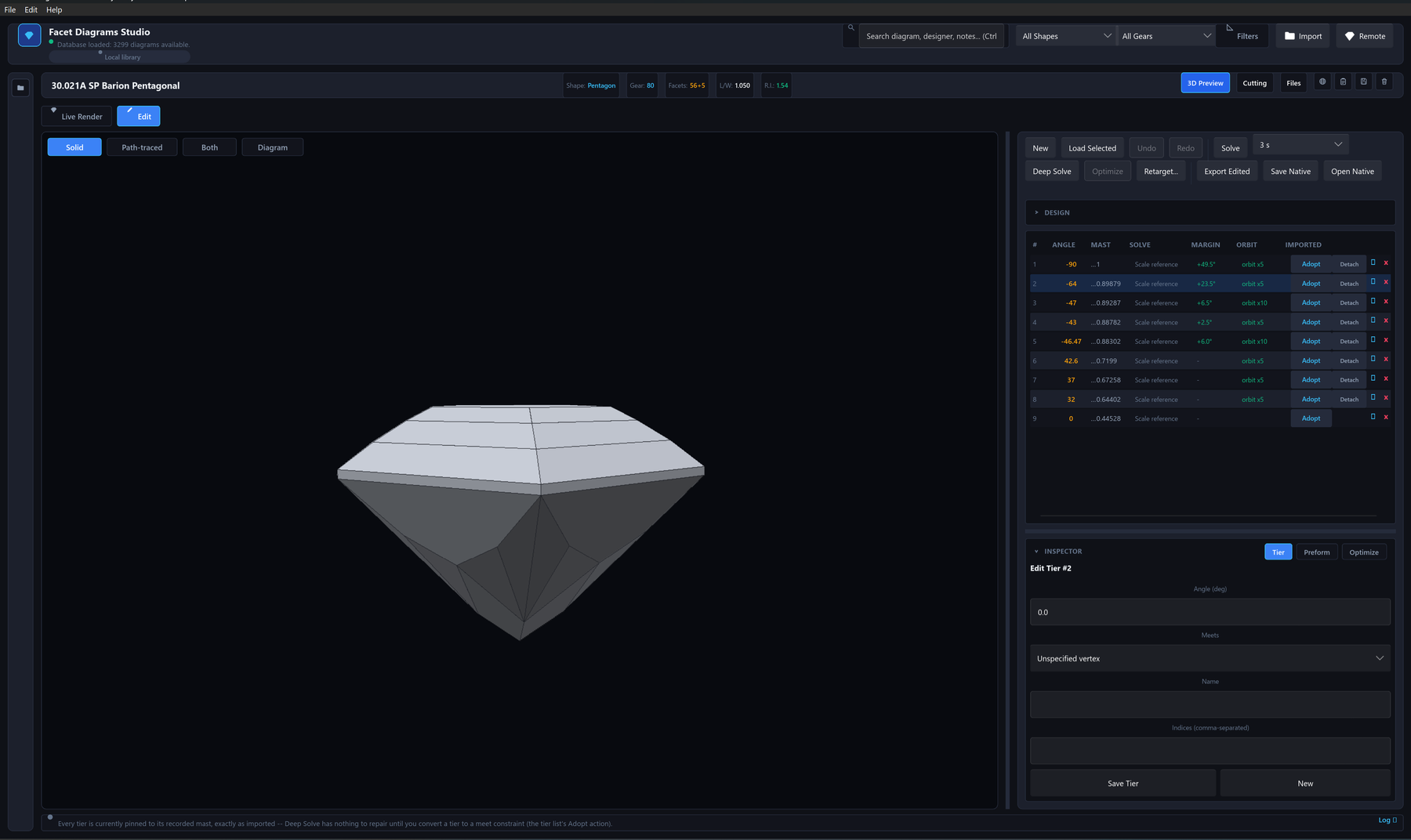
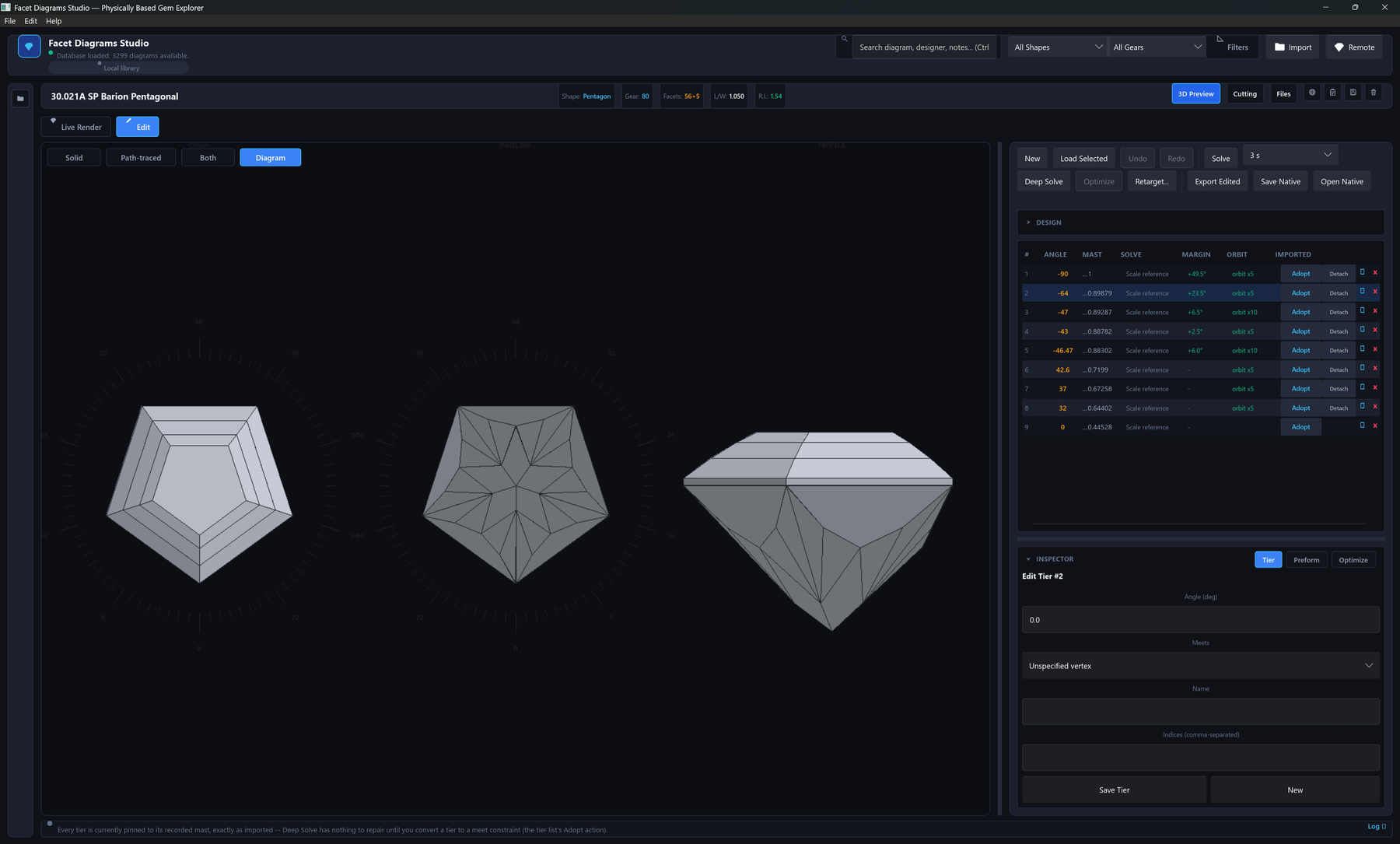
Cutting instructions are a geometric constraint graph, not a static list of
numbers. A meet-point instruction ("cut tier P2 until it meets P1 and G1
at a single point") specifies a facet's depth implicitly; the solver in
crates/indicatrix/src/geometry/meet_solver resolves that
depth by intersecting the facet plane with its neighbours' already-known
vertices, walking the schedule in dependency order so that changing one
tier's angle recomputes every tier that depends on it. Where a design
has no .asc file to anchor against, the solver can instead
anchor a block against the design's own printed C/W/P/W
proportions (meet_solver/anchors.rs).
Solving runs on a background solve service (one persistent worker thread with last-wins request coalescing and real mid-solve cancellation) once a design is large enough that solving stops being instantaneous; the Solve/Deep Solve/Optimize buttons relabel to a running state with an Abandon/Cancel action, and a status-strip activity list shows every long-running operation — background solve, Deep Solve, Optimize, Retarget, a tilt curve or video export — with elapsed time and, where the operation can measure one, a progress fraction. Editing the design while a solve is in flight discards the stale result rather than applying it over a newer edit, and every analysis result the editor keeps on screen (Retarget's proposal, a tier's manufacturability warnings, the tilt curve cache) carries a stale badge the instant an edit invalidates it, cleared only by re-running that analysis.
A pavilion tier's row shows a colour-coded critical-angle margin bar
next to its angle field, live as you type, and the first time (per
session) a design has no anchor tier, a one-time explainer card walks
through why the solver needs one before you hit the "no anchor"
status message cold. New designs start from an empty-state card
offering the New Design dialog's template gallery or an in-app guided
worked example. New Design always opens a design: even
the Empty template leaves a zero-tier design with its preform in the
viewport, a "no tiers yet" hint and an + Add Tier
button. The worked example (Help → Guide: New Design Walkthrough) walks
you through building a simple round-brilliant-style stone yourself,
tier by tier — it does not build the stone for you. Each step lists its
actions as numbered lines with the exact values to type, outlines the
control it is about, and moves on by itself once its goal is reached —
the tier exists with the right name, angle and indices, the material is
applied, the design solves to a closed stone — whichever route got
there (the tier form, a quick-add button, an inline edit, Undo/Redo, or
auto-solve); a status chip reads "Waiting for: …" until then.
Skip step moves on without the goal, Back returns to
the previous step, and the two reading steps wait for Next.
Controls the current step does not use are locked — dimmed, with a
tooltip saying so, keyboard shortcuts included — until the guide is
closed. The guide panel sits beside the tier table on a wide Edit
layout and floats at the window's right edge everywhere else, where it
can be dragged out of the way; either way it collapses to a small
"Guide · Step N of M" pill
(apps/indicatrix-cut/docs/manual/07-new-design-worked-example.md).
A full keyboard-shortcut overlay is one press of ? away
(or Help → Keyboard Shortcuts) whenever no text field has focus.
6Preforms and the angle optimizer beta
indicatrix-cut-core's preform module models
the rough gem material as a rectangular block or a round/oval cylinder.
Its yield_metrics module reports volumetric yield, an
estimated carat weight from the material's specific gravity, and flags
a design whose facets cut outside the stated rough. The
optimize module runs a coordinate-search
optimizer over free facet angles, holding pinned tiers (such as the
girdle) fixed and rejecting any candidate that breaks closed polyhedral
geometry or introduces a new manufacturability warning.
Manufacturability checks (manufacturability/) run against
every edit: vanishing facets that fail to form a real face, facets too
small to cut reliably, index-gear quantization error, and meets
referencing a tier that has not been cut yet.
A tier's constraint can also be authored as a real-world target rather
than a dimensionless mast: cut to a stated depth in millimetres, or
bisect the tier's mast until the design's measured girdle thickness or
table width lands on a stated millimetre figure
(TierTarget::DepthMm/GirdleThicknessMm/
TableWidthMm, indicatrix-cut-core/src/design/targets.rs).
Every tier also keeps a stable id (tier_id) that survives
reordering, duplication, and a Save Native/reopen round trip through
the native .indicatrix.toml sidecar, so a manufacturability
warning or an authored target keeps pointing at the same tier across
edits rather than a table row position.
7Rough planner beta
Library → Plan Rough... answers a question the preform's single-design yield figure cannot: given a block of rough and the designs in the library, what is the heaviest set of stones that can be sawn out of it? You enter the block's X, Y and Z in millimetres, a Stones (up to) limit from 1 to 99 (a maximum, not a target: a layout may cut fewer), and a material. Only materials with a known specific gravity are offered, because the specific gravity turns volume into carats. The planner returns up to 10 layouts, heaviest first.
The candidate designs are either the designs the library's search and filters currently show, or the whole library. The loss settings default to 0.30 mm saw kerf, 0.20 mm allowance per side of each stone, 0 mm rough skin and a 1.00 mm minimum stone width, and can be edited in the dialog. Each result row shows the total weight in carats, the yield (finished stone volume as a share of the block's volume), the stone count, and the designs used — one design repeated, or a mix.
Each layout also carries a cut plan written as sawing instructions: the block is cut into slabs, each slab into bars, each bar into pieces, with the kerf lost at every cut, and each piece names the design cut from it, which rough face its table faces, and the finished size and weight. Cuts run edge to edge across the whole part, and the planner tries all 6 orders of the three axes. A design's finished size (footprint, height and volume) is measured once by solving its facets, then stored in the library database, so only the first run over a large library is slow; the measurement is repeated automatically when a design's geometry changes. Designs without a usable design file — catalogue entries known only by an angle table, or schedules that rely on the preform to close the stone — are skipped and counted in the results.
The results are an upper bound for a clean block. The planner assumes rectangular rough without inclusions or cracks and stones that come out exactly to their design's proportions, and it fits each stone to the smallest rectangle around it, so a round stone is treated as needing a square footprint. It works with the local library only; if a remote catalogue is selected, the dialog asks you to switch back. Use the ranking to compare options, and do the final marking-up on the rough itself.
Sources: crates/indicatrix-cut-core/src/rough_plan/,
apps/indicatrix-cut/src/gui/rough_plan/, and the manual
chapter apps/indicatrix-cut/docs/manual/15-planning-a-rough.md.
Fitting a design into scanned, irregular rough is a separate item on the
roadmap.
8Solid inspection view
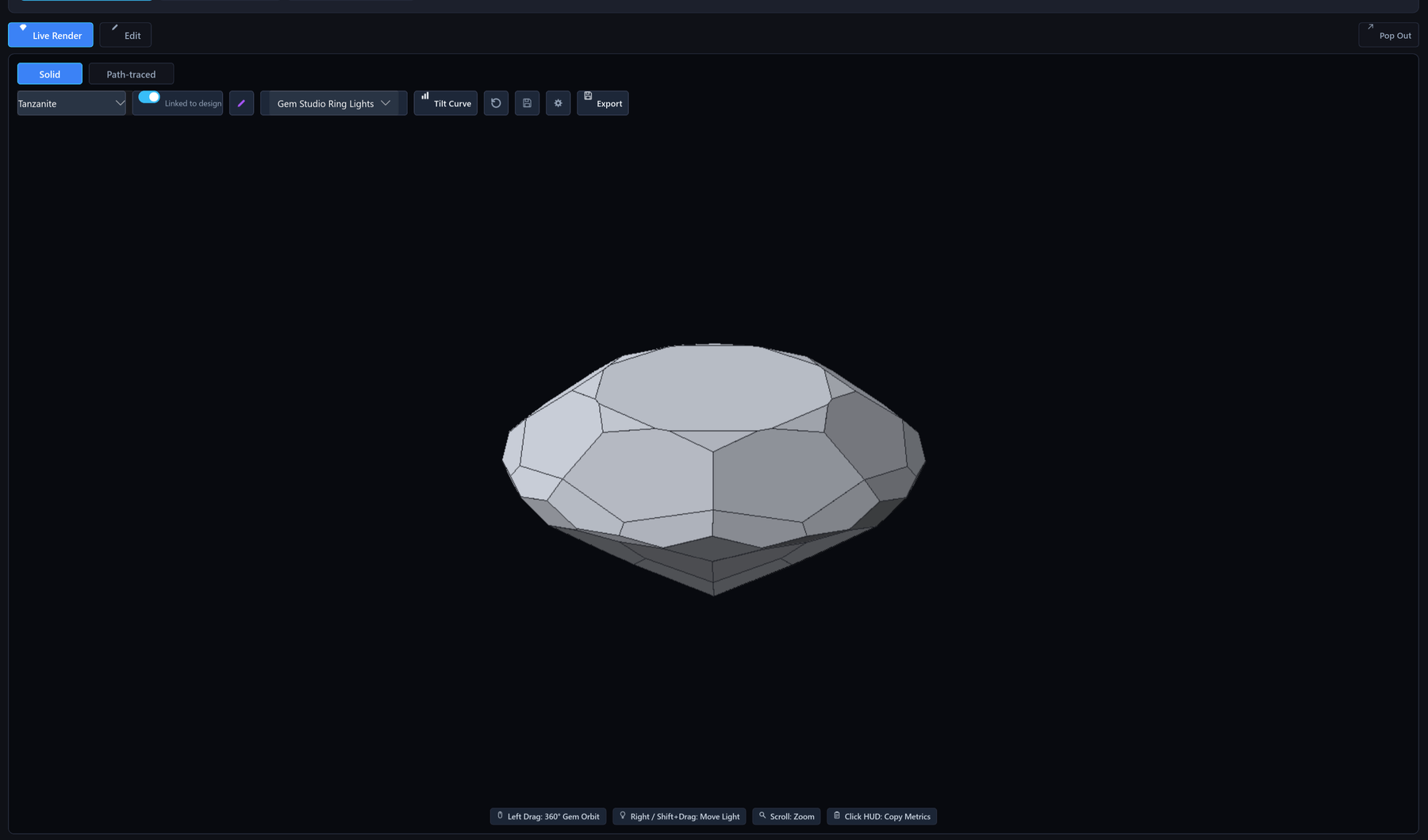
A secondary 3D view shows the exact polyhedral solid (facet edges and vertices, not a tessellated approximation). Clicking a facet selects its row in the cutting-schedule table.
9Export
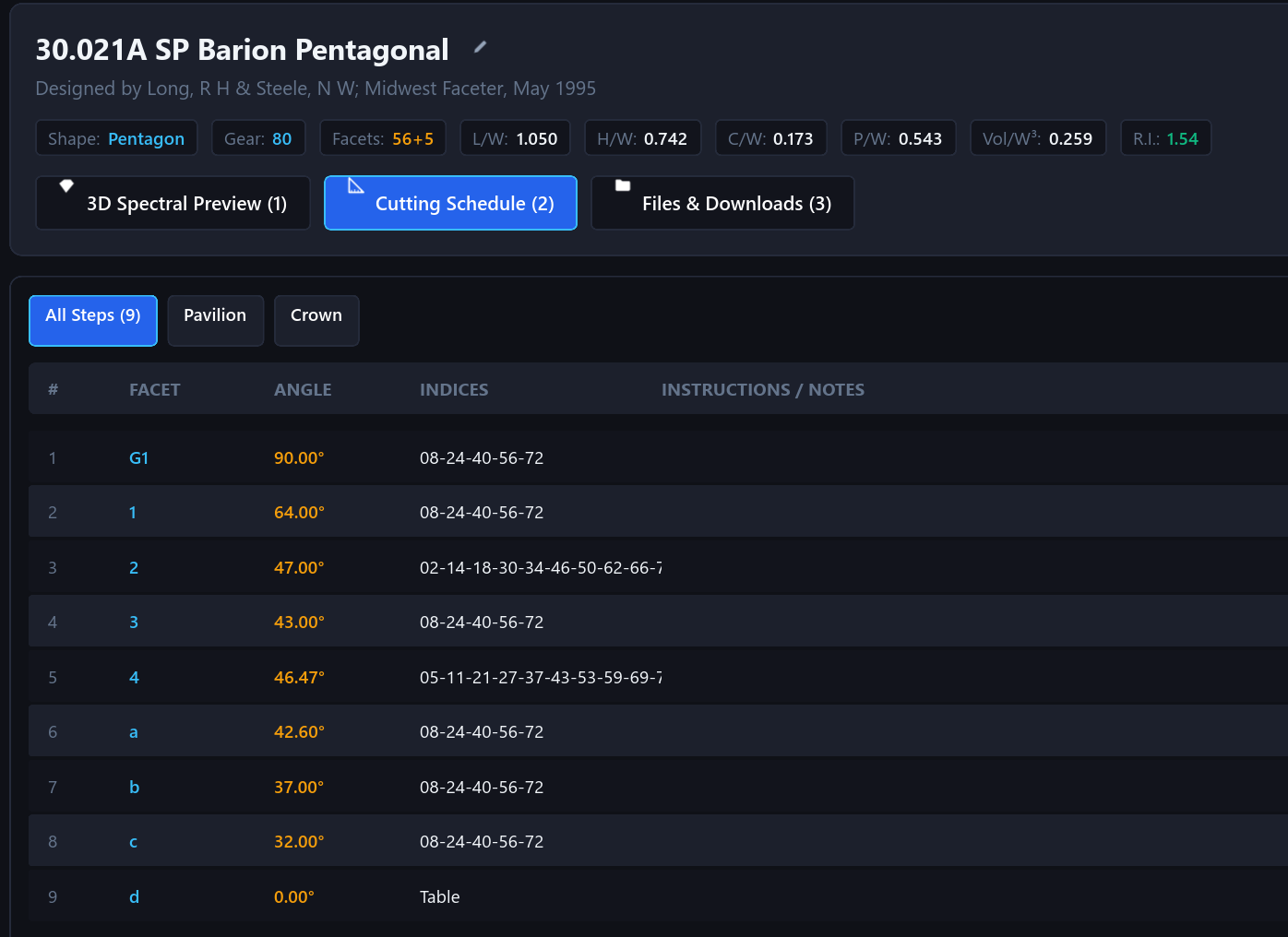
A split button in the command bar groups the master-still render export with two further File-menu exports built from the same solved schedule: Export Cutting Sheet (HTML), a self-contained printable page with an embedded crown/pavilion/profile diagram and one row per tier (sequence, name, angle, indices, solved mast, meet instruction, and any cheater/azimuth offset), and Export Diagram (PNG), the same facet drawing alone at print quality. Where a real girdle diameter is set, the cutting sheet also prints each facet's cutting depth in millimetres and its unsigned angle of elevation for a machine's dial, alongside the dimensionless mast.
- Max resolution
- 8192 × 8192 px (
MAX_EXPORT_DIM) - Max samples
- 32 768 per pixel (
MAX_EXPORT_SPP) - Max bounces
- 128 (
MAX_EXPORT_BOUNCES) - Colour spaces
- sRGB, Display P3, Rec. 2020 (Display P3/Rec. 2020 exports embed an ICC profile so they aren't misread as sRGB)
- File formats
- Read and write: GemCAD
.asc, native.indicatrix.tomlsidecar, 8-bit PNG renders. Read, import and open:.gem(GemCAD's binary save format, geometry decoded) and.gcs(Gem Cut Studio), both converted to.asccutting instructions. Write, experimental:.gcs
Constants from apps/indicatrix-cut/src/bridge/export_thread/params.rs.